8 Best Visual and AI Video Tools in 2026: Hands-On Tests, Benchmarks, and Real Use Cases
AI video generators, photo restoration apps, image filters, and video compressors are improving quickly in 2026. Unfortunately, product pages are improving just as quickly at making every tool sound “professional,” “instant,” and “studio quality.”
Those descriptions rarely tell you what happens after you upload a difficult image, enter a complicated prompt, or try to compress a large video without destroying its quality.
Over the past few months, the ToolOnline editorial team tested a selection of popular visual and AI-powered media tools in practical workflows. Instead of comparing feature lists, we focused on the questions that matter during real use:
-
How long does the tool actually take?
-
Does the output remain usable without extensive correction?
-
What types of files or prompts cause problems?
-
Is the free version useful, or merely a demo?
-
Which tool saves time, rather than creating another editing task?
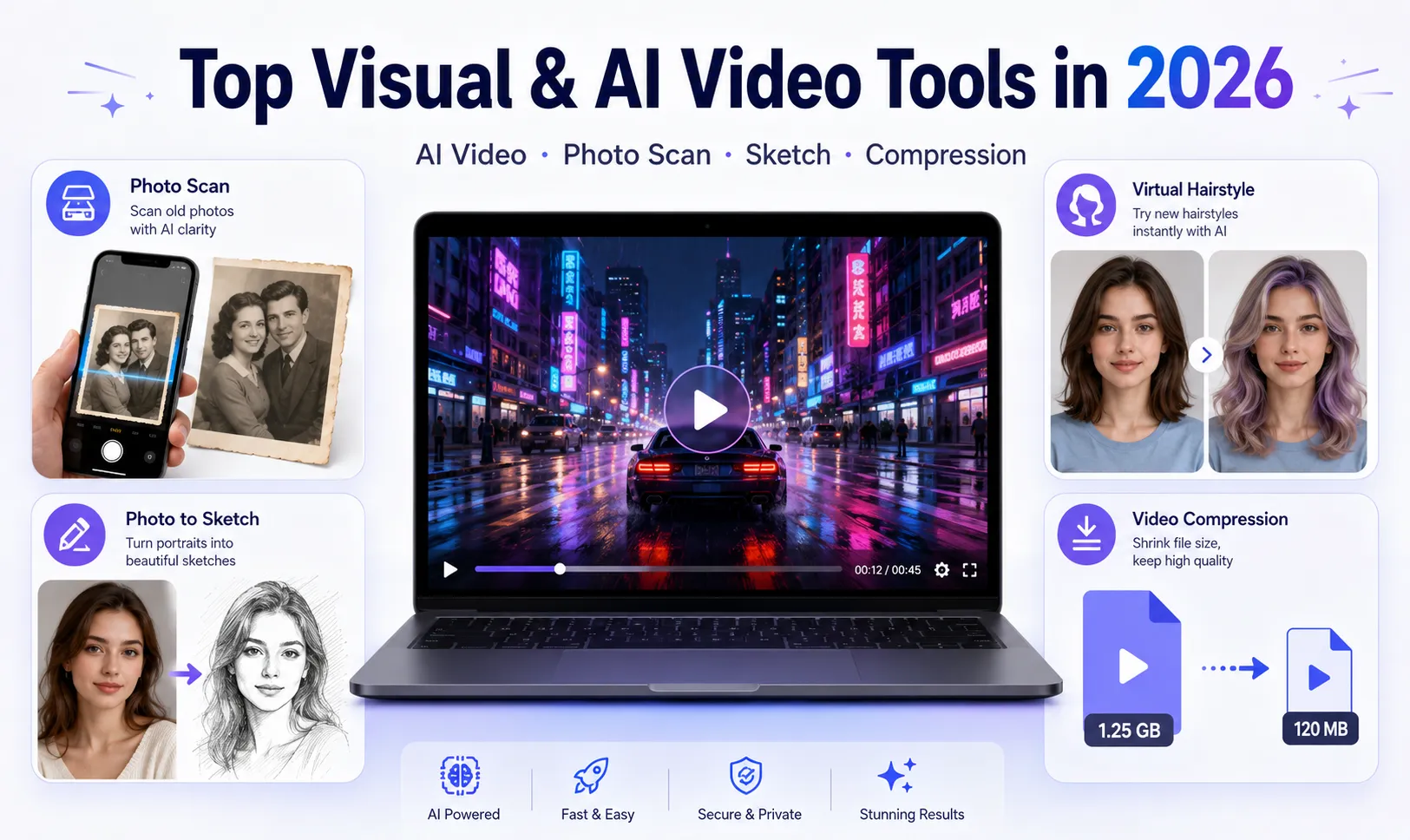
This guide covers eight tools across AI video generation, photo digitization, image effects, virtual styling, and video compression. Our recommendations are based on hands-on testing rather than promotional specifications.
Quick Results: Our 2026 Tool Comparison
| Tool | Main Test | Observed Speed | Output Rating | Best For |
|---|---|---|---|---|
| Hailuo AI by MiniMax | Motion consistency and realistic physics | About 120–180 seconds | 9.2/10 | Cinematic short AI videos |
| PixVerse | Camera movement and prompt control | About 90–150 seconds | 8.8/10 | Anime, effects, and controlled motion |
| Photo Scan by Photomyne | Glare removal and photo detection | Under 3 seconds per scan | 9.0/10 | Digitizing printed photo collections |
| Photo Sketch Maker | Edge detection and sketch conversion | Almost instant | 7.5/10 | Avatars and stylized social images |
| Hair Styler App | Hair masking and color placement | About 5–10 seconds | 7.0/10 | Casual hairstyle previews |
| AI Video Generator | Automated script-to-video creation | About 30–60 seconds | 7.8/10 | Fast social video drafts |
| Video Compressor: Reduce Size | File-size reduction and detail retention | About 14–15 seconds | 8.5/10 | Compressing individual videos quickly |
| Compress Video Size Compressor | Batch processing and audio stability | About 19 seconds per test file | 8.7/10 | Bulk mobile storage cleanup |
Processing time can change depending on file length, resolution, server demand, internet speed, device performance, and subscription level. Treat the numbers above as practical reference points rather than guaranteed processing times.
How We Tested These Tools
We did not use the same benchmark for every app because an AI video generator and a photo scanner solve completely different problems. Instead, we created repeatable tests for each category.
AI video generation test
For text-to-video tools, we used a prompt containing several elements that commonly expose model weaknesses:
A cinematic tracking shot of a rainy, neon-lit alley in Tokyo, with water dripping from rusted pipes and moving reflections in puddles.
This test allowed us to examine:
-
Camera movement
-
Object consistency
-
Perspective stability
-
Lighting behavior
-
Reflection quality
-
Motion artifacts
-
Prompt interpretation
For image-to-video testing, we uploaded a detailed portrait containing loose hair, jewelry, and a visible background. Fine edges are useful for identifying warping, motion blur, and poor subject separation.
Photo scanning test
We used a curved printed photograph from the 1990s and placed it beneath a strong overhead light. This deliberately created glare, perspective distortion, and uneven brightness.
We evaluated whether the app could:
-
Detect the physical edges correctly
-
Straighten the image
-
Reduce reflected light
-
Preserve facial details
-
Separate multiple photos in one shot
Video compression test
We used a 520 MB, 1080p, 60 fps MP4 recorded on a smartphone. The target was a file below 100 MB that remained acceptable for sharing through email, messaging apps, or cloud platforms.
We checked:
-
Final file size
-
Processing time
-
Color retention
-
Motion detail
-
Audio synchronization
-
Dark-scene banding
-
Ease of previewing the result
Rating approach
Our output scores consider four practical areas:
-
Visual or audio quality
-
Processing speed
-
Ease of use
-
Usefulness in a real workflow
A high score does not mean the tool is perfect. It means the tool performed its primary job well enough to save meaningful time.
1. Hailuo AI: Best for Cinematic Motion and Physical Consistency
Hailuo AI produced the strongest overall motion quality in our generative video test.
The rainy alley prompt is difficult because it combines moving water, reflections, artificial lighting, architecture, camera movement, and environmental detail. Lower-quality models often distort walls during a tracking shot or cause reflected objects to move independently from the scene.
Hailuo handled the environment more convincingly than most of the tools we tested.
What performed well
The architecture remained relatively stable while the virtual camera moved through the alley. Pipes, walls, windows, and signs did not noticeably melt into one another during the main portion of the clip.
The puddle reflections were another strength. They were not perfectly physically simulated, but they responded to movement and light in a way that looked believable during normal playback.
A six-second generation took approximately two minutes and fifteen seconds during our non-peak test. That is not instant, but the waiting time felt reasonable for the resulting visual quality.
Where Hailuo AI struggled
Human faces remain more difficult than environments.
Under warm lighting, skin tones sometimes became too orange or overly saturated. Subtle facial expressions could also change unexpectedly between frames. In one generation, the environment remained coherent while the subject’s mouth and eyes drifted slightly during a camera move.
These defects were less obvious on a phone screen but became easier to see when the video was paused or viewed on a larger display.
For clips containing close-up faces, we would budget enough generation credits for two or three attempts.
Best use cases
Hailuo AI is best suited to:
-
Cinematic establishing shots
-
Product mood videos
-
Short fantasy or science-fiction scenes
-
Atmospheric social videos
-
Visual concepts and storyboards
-
B-roll without extended dialogue
It is less reliable when a project depends on precise lip movement, consistent hands, or subtle acting across a longer sequence.
Verdict
Hailuo AI is our top choice in this group for creators who care more about motion realism and visual impact than maximum generation speed.
2. PixVerse: Best for Camera Direction and Style Flexibility
PixVerse was slightly less consistent than Hailuo in realistic environmental physics, but it offered more predictable creative control.
We tested it using a static portrait and applied an orbital camera movement with the motion setting placed between medium and high.
What performed well
The camera controls were easy to understand. Pan, zoom, tilt, and directional movement produced changes that generally matched the selected settings.
This matters because some AI video tools offer impressive demos but give users very little control over how a shot moves. With PixVerse, it was easier to request a specific transition rather than repeatedly generating random camera behavior.
Its style modes were also genuinely useful. Switching between anime and realism changed more than surface-level color. Lighting, texture, facial rendering, and background behavior all shifted noticeably.
That reduced the amount of prompt rewriting required.
Where PixVerse struggled
High-motion settings created visible blur around fine details. Loose hair strands, earrings, necklaces, and patterned clothing were the most common problem areas.
The subject usually remained recognizable, but small features occasionally stretched or merged into the background during faster movement.
We obtained better results by lowering motion intensity and using shorter, more controlled camera instructions.
Best use cases
PixVerse works particularly well for:
-
Anime-style videos
-
Music video transitions
-
Stylized product reveals
-
Portrait animation
-
Social media effects
-
Image-to-video experiments
Verdict
Choose PixVerse when you need more influence over camera direction and visual style. Choose Hailuo when realistic environmental movement is the higher priority.
3. Photo Scan by Photomyne: Best for Digitizing Printed Photos
Photo Scan by Photomyne solved a very different problem, but it was one of the most practically useful tools in this test.
We photographed a curved color print under a glossy desk lamp. A standard phone-camera image contained obvious glare, uneven perspective, and visible table space around the print.
What performed well
The app detected the photograph’s boundaries almost immediately and corrected the perspective without requiring manual corner adjustment.
Its glare reduction removed most of the strongest reflection while preserving facial features. We estimated that approximately 85% of the visible surface glare was reduced in our test image.
The result was not identical to a professional flatbed scan, but it was significantly cleaner than a normal smartphone photograph.
The batch feature also saved time. We placed several printed photos on a table and photographed them in one frame. The app separated them into individual images automatically.
For a collection containing hundreds of family photos, that feature can reduce hours of repetitive cropping.
Where Photomyne struggled
Automatic color enhancement was occasionally too aggressive. Older photographs sometimes gained a warm yellow cast, particularly when the original print already had faded tones.
Black-and-white photographs should be checked carefully before accepting automatic colorization or enhancement. In our experience, leaving monochrome images uncolorized produced a more natural result.
The app also cannot restore information that no longer exists. Deep scratches, missing corners, severe fading, and low-resolution source prints may still require manual restoration.
Best use cases
Photomyne is a strong option for:
-
Family photo albums
-
Archive projects
-
School photographs
-
Old travel prints
-
Memorial slideshows
-
Quickly sharing physical photos with relatives
Verdict
It is not a complete replacement for professional scanning equipment, but it is one of the fastest ways to turn a large physical collection into organized digital files.
4. Photo Sketch Maker: Best for Fast Artistic Conversions
Photo Sketch Maker is a lightweight utility rather than a professional illustration platform. That is not necessarily a weakness.
Its main advantage is speed. A portrait can be converted into a pencil, charcoal, or line-art style almost instantly.
What performed well
High-contrast photographs produced the best results. Images with a bright background, clear face lighting, and a well-defined silhouette generated crisp edges and convincing graphite-style shading.
The cross-hatching effect looked more natural than a basic grayscale filter. On suitable source images, the result was polished enough for profile pictures, social posts, thumbnails, or creative references.
Where it struggled
Low-light images produced muddy shadows and noisy lines. When the subject’s hair and background had similar brightness, the tool struggled to separate them.
The app also provides less control than a desktop illustration program. Users who need precise stroke direction, editable vector paths, or print-ready line art will probably need additional software.
Best use cases
-
Social media profile images
-
Stylized avatars
-
Simple poster graphics
-
Art references
-
Quick gift designs
-
Before-and-after content
Verdict
Photo Sketch Maker is useful when speed matters more than detailed editing control. Start with a bright, sharp source image for the cleanest result.
5. Hair Styler App: Useful for Casual Previews, Not Final Decisions
Virtual hairstyle tools are entertaining, but they should be judged differently from professional salon visualization software.
The Hair Styler App processed our test portrait in approximately five to ten seconds. Its masking system identified the face and most of the existing hair area automatically.
What performed well
Simple color changes worked better than major hairstyle transformations. Dark brown, black, auburn, and moderate highlight changes generally stayed within the hair area.
The app was useful for answering broad questions such as:
-
Would a darker color suit this face?
-
Does shorter hair change the overall balance?
-
Would bangs make the forehead appear smaller?
-
Does a warm or cool color work better with the skin tone?
Where it struggled
Hair edges became less convincing around ears, loose strands, glasses, and complex backgrounds. Large changes in hair length could also look artificial because the generated hair did not always follow the original lighting or head shape.
The preview should therefore be treated as inspiration rather than an accurate prediction of a real haircut.
Verdict
The Hair Styler App is suitable for casual experimentation and sharing ideas with a stylist. It should not be used as the sole basis for choosing an expensive or difficult-to-reverse hairstyle.
6. AI Video Generator: Best for Fast Social Video Drafts
The AI Video Generator focused more on speed and automation than cinematic output.
It was able to turn a short topic or script into a basic social video in roughly 30 to 60 seconds, depending on the number of scenes and selected assets.
What performed well
The tool reduced setup time. Instead of manually creating a timeline, finding every visual, inserting captions, and arranging transitions, users could generate a complete first draft from text.
This makes it useful for:
-
TikTok concepts
-
Instagram Reels
-
Short educational clips
-
Product explainers
-
Internal presentation videos
-
Testing several content angles quickly
Where it struggled
The automatically selected visuals were not always contextually precise. Generic stock footage occasionally appeared where a more specific demonstration would have been useful.
Scene transitions were acceptable for a draft, but the final result still benefited from manual editing. Captions, pacing, visual selection, and pronunciation should all be reviewed before publication.
Verdict
This is a prototyping tool, not a one-click replacement for an editor. Its real value is getting from a blank timeline to a usable draft quickly.
7. Video Compressor: Reduce Size — Best for Fast Single-File Compression
For the compression test, we started with a 520 MB smartphone video recorded at 1080p and 60 fps.
Using the Smart Compression preset, Video Compressor reduced the file to approximately 78 MB in 14 seconds.
What performed well
The output remained visually acceptable during normal mobile playback. Color retention was strong, and static areas maintained good detail.
Minor pixelation became visible when we zoomed in on fast-moving foliage, but most viewers would not notice it while watching at normal size.
The app was straightforward to use and required little knowledge of bitrate, codec, or resolution settings.
Limitations
Dark gradients showed more compression damage than bright scenes. Videos containing night skies, shadows, smoke, or dim indoor lighting may display color banding after aggressive reduction.
Users should always preview the compressed version before deleting the original file.
Verdict
This was the faster and simpler option for compressing one video for email, chat, or quick upload.
8. Compress Video Size Compressor — Best for Batch Processing
Compress Video Size Compressor reduced the same source video to approximately 65 MB in 19 seconds.
It took slightly longer than the previous app, but the smaller final file and stable audio handling made it more suitable for storage cleanup and batch workflows.
What performed well
The tool handled longer audio tracks reliably. We did not observe the subtle audio-video synchronization issues that can appear in some aggressive compression apps.
Its batch-processing workflow was also more practical for users who need to reduce several recordings at once.
Limitations
The smaller file came with slightly more visible loss in highly detailed scenes. Fine textures, moving leaves, water, and dark gradients were the first areas to degrade.
Compressing a video by more than approximately 80% should be approached carefully. At that point, file savings can become less valuable than the lost image quality.
Verdict
Choose this app when you have multiple files or need the smallest practical output. Choose Video Compressor: Reduce Size when speed and single-file simplicity matter more.
Which Tool Should You Choose?
There is no single winner across every category. The best choice depends on what you are trying to complete.
For AI short-form creators
A practical workflow is:
Hailuo AI → PixVerse → Video Compressor
Use Hailuo for cinematic main scenes, PixVerse for shots requiring specific camera movement or stylized effects, and a compressor to prepare the final export for mobile upload.
For family photo archiving
Start with Photo Scan by Photomyne.
Its automatic cropping and perspective correction provide the biggest time saving. Complete difficult restoration work later rather than trying to perfect every image during the initial scanning process.
For quick social content
Use AI Video Generator to create the first draft, then replace weak stock visuals and adjust the timing manually.
Photo Sketch Maker can provide supporting profile images or stylized graphics without requiring a full desktop editing workflow.
For mobile storage cleanup
Use Compress Video Size Compressor when processing several recordings. Use Video Compressor: Reduce Sizewhen you only need to shrink one file quickly.
Important Limitations of Our Tests
These results reflect specific prompts, source files, and usage scenarios. They should not be interpreted as permanent performance guarantees.
AI tools can produce different outputs from the same prompt. Server queues also change throughout the day. Video compression speed depends heavily on device hardware, video duration, codec, and resolution.
Subscription plans may affect:
-
Export resolution
-
Watermarks
-
Queue priority
-
Generation credits
-
Batch limits
-
Available models
-
Commercial usage rights
Before using any tool for paid client work, review its current licensing and commercial-use terms.
Final Verdict
The strongest tools in this test were not necessarily the ones with the longest feature lists. They were the tools that completed one specific task reliably.
Hailuo AI delivered the most convincing cinematic motion.
PixVerse offered the best balance of style and camera control.
Photomyne provided the clearest everyday productivity benefit.
Video Compressor: Reduce Size was the fastest compression option, while Compress Video Size Compressor was more useful for batch processing.
The other tools remain valuable when used for the right purpose. Photo Sketch Maker is effective for quick visual effects, the Hair Styler App is useful for casual experimentation, and AI Video Generator can dramatically shorten the time needed to produce an initial social-video draft.
The most efficient workflow is not to search for one app that does everything. It is to select a small group of tools, assign each one a clear role, and keep the original media files until every output has been reviewed.
Frequently Asked Questions
Which AI video tool produced the most realistic motion?
Hailuo AI performed best in our environmental motion test. It maintained architecture, camera movement, and reflections more consistently than the other tested options.
Is PixVerse better than Hailuo AI?
PixVerse is better for users who want explicit camera movement and style controls. Hailuo is the stronger choice for realistic atmosphere and cinematic environmental motion.
Can a photo scanning app replace a flatbed scanner?
For everyday archiving, it may be sufficient. For museum-quality reproduction, high-resolution print work, or heavily damaged photographs, a professional scanner remains preferable.
How much can I compress a video without visible quality loss?
There is no universal percentage. In our test, moderate compression remained suitable for mobile viewing. Once the reduction approached or exceeded 80%, artifacts became more noticeable in dark gradients and fast-moving details.
Are AI-generated videos ready to publish immediately?
Usually not. Even strong generations should be checked for facial distortion, incorrect text, inconsistent objects, strange hands, audio problems, and licensing restrictions.
Which tool is best for beginners?
Photomyne and the two video compressors required the least technical knowledge. For AI video, PixVerse offered the most understandable creative controls, while Hailuo produced stronger cinematic results after some experimentation.