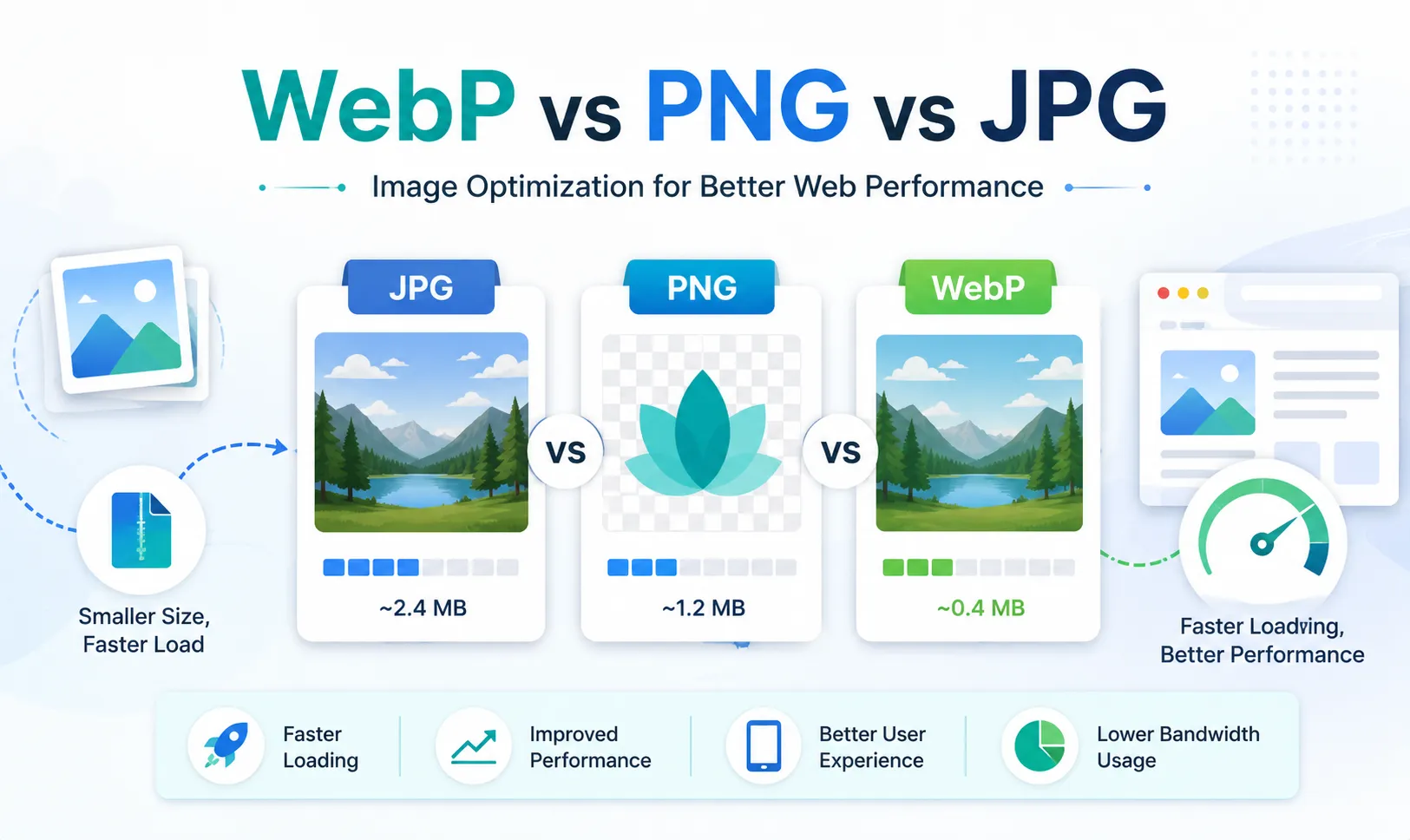
WebP vs PNG vs JPG: How to Optimize Images for Better Web Performance
Images make websites more useful, attractive, and persuasive. Product photos help customers understand what they are buying, illustrations make articles easier to follow, and banners give landing pages a stronger visual identity.
But images are also one of the most common reasons a website becomes slow.
A single unoptimized photo may be several megabytes in size. When a page contains multiple large images, visitors may have to wait longer before they can view the content or interact with the page. This is especially noticeable on mobile devices and slower networks.
Choosing the right format can significantly reduce file size without causing an obvious loss of quality. However, JPG, PNG, and WebP are designed for different purposes. A product photograph, a transparent logo, and a screenshot containing small text should not always use the same format or compression settings.
This guide explains the practical differences between JPG, PNG, and WebP, compares their performance in common website scenarios, and shows how to optimize images using ToolOnline.ink.
Quick Answer
-
Choose JPG for standard photographs that do not require transparency.
-
Choose PNG for logos, screenshots, interface graphics, and transparent images.
-
Choose WebP for smaller files and efficient delivery on modern websites.
-
Resize oversized images before compression for the greatest performance improvement.
-
Always preview the final image instead of choosing the smallest file automatically.
JPG vs PNG vs WebP: Quick Comparison
| Feature | JPG | PNG | WebP |
|---|---|---|---|
| Compression | Lossy | Lossless | Lossy and lossless |
| Transparency | No | Yes | Yes |
| Animation | No | Limited | Yes |
| Typical file size | Small | Large | Often smallest |
| Best for | Photographs | Logos, screenshots, and UI graphics | Most modern web images |
| Main advantage | Efficient photo compression and broad support | Sharp details and transparency | Strong balance of quality and file size |
| Main limitation | No transparency and quality loss at high compression | Large files | Quality depends on export settings |
There is no single format that is best for every image. The correct choice depends on the content of the image and how it will be used on the page.
What Is JPG?
JPG, also known as JPEG, is one of the most widely used image formats on the web.
It uses lossy compression, which reduces file size by removing some visual information. When the compression level is reasonable, the difference may be difficult to notice at normal viewing size.
JPG works especially well for images containing:
-
Photographs
-
Natural textures
-
Complex colors
-
Shadows
-
Smooth gradients
-
Product photography
-
Travel and lifestyle images
-
Large photographic backgrounds
A photograph may contain millions of small color changes. JPG can simplify some of this visual information and create a much smaller file than PNG.
However, JPG does not support transparent backgrounds. It is also less suitable for graphics containing small text, sharp lines, icons, or diagrams. Heavy compression can create blurred details, visible blocks, or uneven gradients.
When should you use JPG?
Use JPG for standard photographs that do not require transparency.
It is a practical choice for:
-
Product photos
-
Blog cover images
-
Team photos
-
Travel images
-
Food photography
-
Real-estate photos
-
Promotional backgrounds
For most web photographs, a quality setting between approximately 75% and 85% is a useful starting point.
Detailed product images may require a higher setting, especially when labels, textures, or reflective surfaces are important.
What Is PNG?
PNG uses lossless compression, which preserves image information more accurately than a typical JPG export.
It works well for visual content containing:
-
Transparent backgrounds
-
Sharp edges
-
Small text
-
Icons
-
Screenshots
-
Interface components
-
Logos
-
Diagrams
-
Simple illustrations
One of PNG’s biggest advantages is transparency. A transparent logo can be placed over different background colors without displaying a solid rectangular box around it.
PNG also keeps text and thin lines sharper than a heavily compressed JPG.
The main disadvantage is file size. A large photograph saved as PNG may be several times larger than the same image saved as JPG or WebP.
When should you use PNG?
Use PNG when transparency, precise edges, or sharp text are more important than achieving the smallest possible file.
PNG is commonly used for:
-
Brand logos
-
Software screenshots
-
Interface graphics
-
Transparent product overlays
-
Charts
-
Icons
-
Images containing important text
PNG is usually not the best choice for large photographs, full-width banners, or photographic backgrounds.
What Is WebP?
WebP is a modern image format designed specifically for the web.
It supports both lossy and lossless compression. It can also support transparency and animation.
This makes WebP suitable for many types of website images, including:
-
Product photographs
-
Blog images
-
Landing-page banners
-
Thumbnails
-
Transparent graphics
-
Illustrations
-
Interface elements
-
Lightweight animations
In many cases, WebP can create a smaller file than JPG or PNG while maintaining similar visible quality.
However, WebP is not automatically perfect. A poorly compressed WebP image can still look blurry or damaged. The result depends on the source image, dimensions, quality setting, and visual complexity.
When should you use WebP?
WebP is a strong choice for most modern websites.
It is particularly useful when:
-
You want to reduce large product-photo files.
-
You need transparency but want a smaller file than PNG.
-
You are optimizing blog thumbnails or banners.
-
You want one flexible format for several image types.
-
Your audience mainly uses modern browsers.
For photographs, a WebP quality setting around 75% to 85% is a practical starting point.
Images containing text, logos, transparent shadows, or detailed illustrations may require a higher setting or lossless compression.
Illustrative Image Performance Comparison
The following sample benchmark uses 45 representative images from common website scenarios.
The figures are illustrative examples designed to demonstrate how image dimensions, content, and compression settings can affect file size. Actual results will vary depending on the source image and website environment.
The sample includes:
-
18 e-commerce product photographs
-
12 blog and editorial illustrations
-
8 landing-page banners
-
7 transparent interface graphics
| Image Type | Original File | Optimized File | WebP File | Estimated Reduction |
|---|---|---|---|---|
| Product photograph | JPG, 4.62 MB | JPG, 1.31 MB | 620 KB | 86.6% |
| Blog illustration | PNG, 2.88 MB | PNG, 1.46 MB | 430 KB | 85.1% |
| Transparent UI graphic | PNG, 1.76 MB | PNG, 910 KB | 338 KB | 80.8% |
| Landing-page banner | JPG, 3.24 MB | JPG, 980 KB | 510 KB | 84.3% |
| Mobile thumbnail | JPG, 680 KB | JPG, 240 KB | 128 KB | 81.2% |
Across the sample set, suitable WebP versions produced the smallest files in most cases.
However, images containing small text, dark gradients, transparent shadows, or detailed textures required more careful settings.
Example 1: E-Commerce Product Photograph
The first example is a studio product image with shadows, reflective surfaces, and detailed material textures.
The image dimensions are 1200 by 1200 pixels.
The original JPG file is 4.62 MB. After standard JPG optimization, the file becomes 1.31 MB. After conversion to WebP at approximately 82% quality, the file becomes around 620 KB.
This represents an estimated 86.6% reduction compared with the original.
At normal product-page size, the WebP version preserves the main colors, product edges, and material textures.
When the quality setting is reduced too far, small labels and reflective details begin to look soft.
Practical recommendation
For detailed product photography, start with WebP at approximately 80% to 85% quality.
Before publishing, inspect:
-
Product labels
-
Surface textures
-
Small printed details
-
Reflective materials
-
Product edges
-
Color accuracy
-
Shadows
A smaller product image is useful only when customers can still understand the product clearly.
Example 2: Blog Illustration with Text
The second example is a full-width blog illustration containing gradients, icons, and text.
The image dimensions are 1920 by 1080 pixels.
The original PNG file is 2.88 MB. An optimized PNG version is around 1.46 MB. A WebP version at approximately 88% quality is around 430 KB.
This represents an estimated 85.1% reduction compared with the original PNG.
At normal article width, the WebP version remains visually close to the original. However, lower quality settings cause small text and thin graphical lines to become less precise.
Practical recommendation
WebP can work well for blog illustrations, but text-heavy graphics should use a higher quality setting.
When an illustration contains labels, charts, or diagrams, check the following details carefully:
-
Small text
-
Thin lines
-
Icon edges
-
Color gradients
-
Background patterns
Lossless WebP or optimized PNG may be more suitable when perfect edge clarity is required.
Example 3: Transparent Interface Graphic
The third example is a transparent interface panel containing icons, borders, and small text.
The image dimensions are 960 by 540 pixels.
The original PNG file is 1.76 MB. The optimized PNG version is around 910 KB. A lossless WebP version is around 338 KB.
This represents an estimated 80.8% reduction compared with the original.
The transparent background remains intact, while the text and icons stay clear.
Practical recommendation
Lossless WebP can be a useful alternative to PNG for transparent interface graphics.
After conversion, inspect:
-
Transparent edges
-
Soft shadows
-
Thin borders
-
Small icons
-
Text clarity
-
Blending with the page background
PNG may still be appropriate when the original file is already small or when maximum compatibility is required.
Additional Findings
Landing-page banners with dark gradients often require a higher quality setting to avoid visible color banding.
For mobile thumbnails, resizing the source image usually creates a greater improvement than changing the format alone.
An image that is displayed at 600 pixels wide does not need to be uploaded at 3000 or 4000 pixels wide.
Which Format Should You Choose?
| Your Image | Recommended Format | Suggested Starting Point |
|---|---|---|
| Product photograph | WebP or JPG | 80%–85% quality |
| Blog photograph | WebP or JPG | 75%–85% quality |
| Logo with transparency | PNG, SVG, or lossless WebP | Lossless |
| Screenshot with text | PNG or lossless WebP | Lossless or 90%+ |
| Website banner | WebP | 80%–88% quality |
| Small thumbnail | WebP | Resize first, then use around 80% |
| Animated graphic | Animated WebP | Keep dimensions and duration limited |
These settings should be treated as starting points rather than fixed rules.
The best result depends on the source image and how it appears on the website.
What Matters More Than the Image Format?
Choosing JPG, PNG, or WebP is important, but the format is only one part of image optimization.
Resize Images Before Compression
Many website images are uploaded at dimensions far larger than their actual display size.
For example, an image may be 4000 pixels wide even though it is never displayed wider than 1200 pixels.
Converting that file to WebP helps, but resizing it first usually produces a much stronger reduction.
Before compressing an image, check:
-
Its original width and height
-
Its maximum desktop display size
-
Its mobile display size
-
Whether multiple responsive sizes are needed
Avoid sending visitors image data that their devices will never display.
Do Not Use the Same Setting for Every Image
A photograph and a screenshot should not automatically use the same compression level.
Images containing the following elements may require higher quality:
-
Small text
-
Fine product labels
-
Thin lines
-
Dark gradients
-
Transparent shadows
-
Fabric textures
-
Hair
-
Skin tones
-
Reflective surfaces
The correct setting should be selected according to the image content.
Do Not Replace Every PNG Automatically
WebP does not make PNG unnecessary.
PNG remains useful for:
-
Small logos
-
Screenshots
-
Interface assets
-
Sharp diagrams
-
Transparent graphics
-
Images requiring precise pixel quality
An already optimized PNG may provide little additional saving after conversion.
Always compare both versions.
How to Optimize Images
ToolOnline.ink provides a browser-based workflow for compressing and converting common image formats.
The following process can help you achieve a reliable balance between quality and file size.
Step 1: Check the dimensions
Compare the image’s width and height with the size used on the website.
A 4000-pixel image is unnecessary when it is displayed at only 1200 pixels wide. Resize oversized images before compression.
Step 2: Upload the image
Upload a JPG, PNG, or WebP file to the appropriate ToolOnline.ink image tool.
When processing several files, group them by purpose. Product photographs and transparent graphics may require different settings.
Step 3: Choose the output format
Choose JPG for ordinary photographs without transparency.
Choose PNG for screenshots, sharp graphics, and transparent assets.
Choose WebP for efficient modern delivery.
Choose lossless WebP when transparency and precise edges must be preserved.
Step 4: Adjust the quality
For photographs, begin between approximately 75% and 85%.
Use a higher setting for detailed products, text-heavy illustrations, or gradient backgrounds.
For logos and transparent graphics, compare optimized PNG with lossless WebP.
Step 5: Preview the result
View the optimized image at 100% size and at its normal website display size.
Look for:
-
Blurry text
-
Jagged edges
-
Damaged gradients
-
Missing transparency
-
Unnatural colors
-
Lost product details
-
Distorted shadows
-
Compression blocks
Increase the quality setting when visible defects appear.
Step 6: Test the image on the page
Add the optimized image to a test or staging page.
Check it on both desktop and mobile devices.
Make sure that:
-
The image loads correctly.
-
Transparency remains intact.
-
Text is readable.
-
The dimensions are correct.
-
The image does not appear blurry.
-
The page layout remains stable.
The real webpage is the final test—not the file size alone.
Practical Image Optimization Tips
Compress important images carefully
The main product image, hero banner, or featured article image may strongly affect the visitor’s first impression.
These images should be smaller, but not visibly damaged.
Use lazy loading for lower-page images
Images located further down the page can often load only when the visitor approaches them.
However, lazy loading may not be suitable for the main image near the top of the page.
Use meaningful image descriptions
Alternative text should explain the purpose of the image clearly.
Avoid repeating unrelated keywords. A useful description improves accessibility and helps search engines understand the image in context.
Consider multiple image sizes
Mobile screens do not always need the same large image used on desktop.
Providing several image sizes can prevent mobile users from downloading unnecessarily large files.
Test the entire page
Image performance can also be affected by:
-
Hosting speed
-
Caching
-
JavaScript
-
CSS
-
Advertising
-
Tracking scripts
-
Content delivery networks
-
Server response time
A smaller image does not automatically guarantee a fast page. Measure the actual website after publishing.
Frequently Asked Questions
Is WebP always better than JPG?
No.
WebP often creates a smaller file, but the best format depends on the source image and compression settings.
A well-optimized JPG may still be suitable for a photograph. Compare the file size and visible quality before deciding.
Should every PNG be converted to WebP?
No.
Small PNG files may already be efficient. PNG may also preserve certain types of text, icons, and interface details more reliably.
Convert the file only when WebP provides a meaningful improvement.
Does WebP support transparent backgrounds?
Yes.
WebP supports transparency and can often produce a smaller file than PNG.
After conversion, inspect transparent edges and shadows to make sure they still blend correctly with the page background.
Does WebP support animation?
Yes.
Animated WebP can be more efficient than GIF in many situations.
However, large or continuously looping animations can still slow down a page and distract visitors.
Will WebP improve SEO?
WebP does not directly guarantee higher search rankings.
However, correctly optimized images can reduce page weight and improve loading speed. Better performance may support user experience and Core Web Vitals.
The overall quality and performance of the page matter more than the file format alone.
What compression setting should I use?
There is no universal setting.
For photographs, 75% to 85% is a practical starting point.
Detailed products, text-heavy illustrations, dark gradients, and transparent graphics may require higher settings.
Always preview the result before publishing.
Is the smallest file always the best?
No.
The smallest file may contain visible quality problems.
The best image is the smallest version that still looks clear and professional in its actual website position.
Should images be resized before compression?
Yes.
Resizing often produces a larger improvement than compression alone.
An image should not be significantly larger than the dimensions required by the website.
Conclusion
JPG, PNG, and WebP each have different strengths.
JPG remains a practical choice for photographs. PNG is useful for transparent backgrounds, screenshots, logos, and precise graphics. WebP offers flexible compression and often produces smaller files for modern websites.
The most effective workflow is not to convert every image using the same settings.
Instead:
-
Identify the purpose of the image.
-
Resize it to the dimensions actually required.
-
Select a suitable format.
-
Adjust the compression level carefully.
-
Preview the visual result.
-
Test the optimized image on the real webpage.
Image optimization is not only about reducing file size. It is about creating a faster website while preserving clarity, visual quality, and user trust.
ToolOnline.ink can simplify the compression and conversion process, but the final result should always be reviewed according to the image’s actual use case.
Choose the right format, remove unnecessary dimensions, and optimize for the page your visitors really see.
Editorial Note
The benchmark figures in this article are illustrative examples designed to demonstrate a realistic comparison method. Actual results will vary depending on the source image, dimensions, compression settings, browser, device, and website environment.