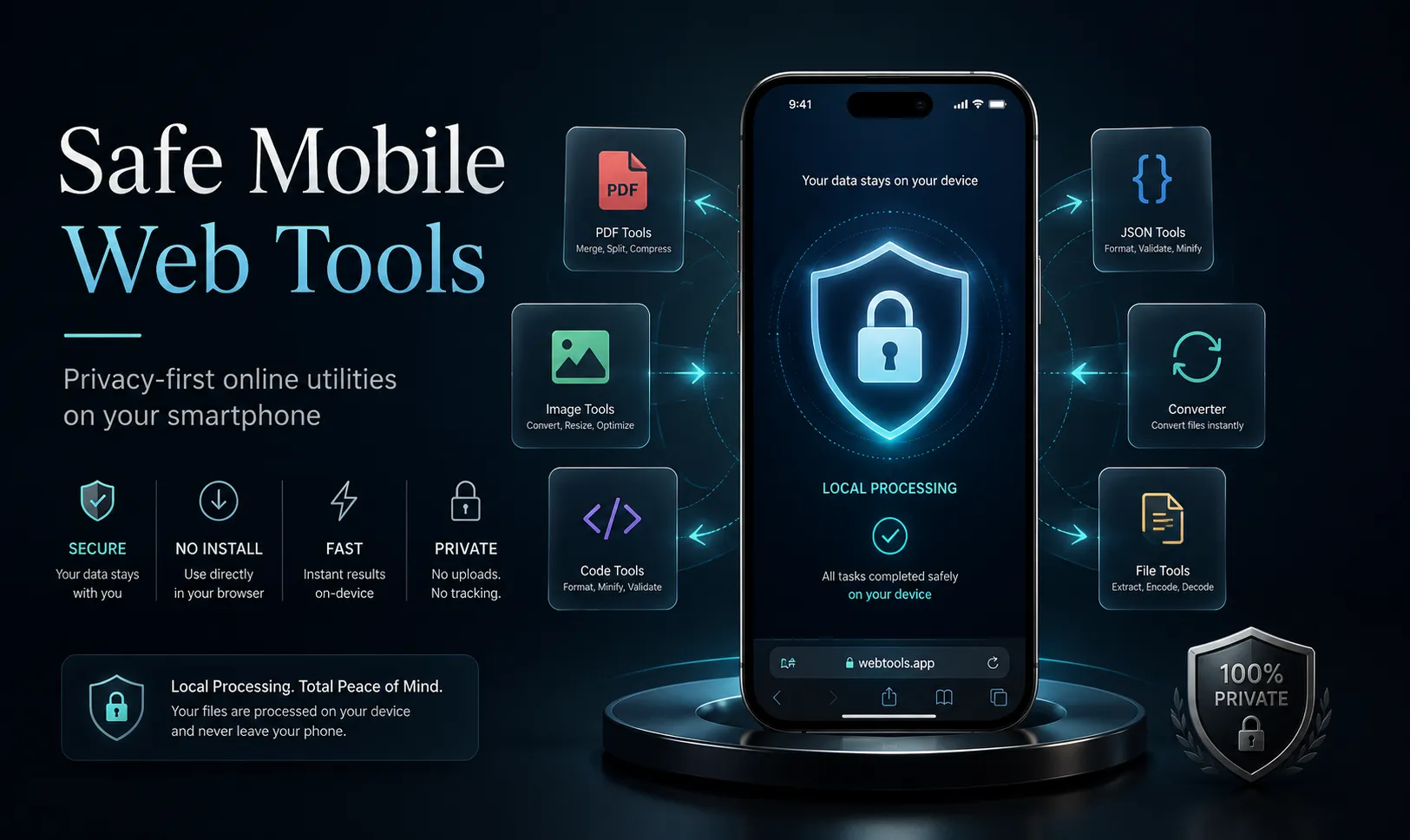
How to Safely Use Online Web Tools on Your Smartphone: A Privacy-First Guide
Smartphones are no longer just communication devices. Many people now use them to edit documents, compress images, convert files, format code, create QR codes, and complete urgent work while away from a computer.
Browser-based tools make these tasks convenient because they usually require no installation. You can open a page in Safari, Chrome, Firefox, or Edge, complete the task, and download the result directly to your phone.
However, convenience does not automatically mean privacy.
When you select a personal photograph, business document, résumé, contract, or code snippet, the tool may process that information locally on your phone—or upload it to a remote server. The difference is important, especially when the file contains personal, confidential, or commercially sensitive information.
This guide explains how mobile web tools process data, what to check before using them, and how to reduce privacy and security risks on both iPhone and Android devices.
Quick Answer
Before using an online tool on your phone:
-
Check whether processing happens locally or on a remote server.
-
Avoid uploading sensitive files when the privacy policy is unclear.
-
Review browser permission requests carefully.
-
Confirm that the website uses HTTPS.
-
Remove location and personal metadata from images before sharing them.
-
Delete downloaded results from shared devices when finished.
-
Avoid entering passwords, private keys, tokens, or financial information into unfamiliar tools.
-
Use a trusted network when handling confidential material.
Client-side processing can reduce exposure because files may remain on the device, but it does not automatically make every website completely secure.
Why Mobile Web Tool Privacy Matters
A web tool may appear simple. You upload a file, select an option, and download the result.
Behind that interface, several things may happen:
-
The file may be processed entirely inside the browser.
-
It may be uploaded to a remote server.
-
It may be temporarily stored for processing.
-
It may remain available through a download link.
-
Usage information may be collected through analytics or advertising scripts.
-
The result may be saved automatically to your phone’s downloads folder or cloud storage.
For ordinary public images, this may not matter much. For private documents, source code, identification records, or client files, it can create unnecessary risk.
Examples of sensitive content include:
-
Passports and identity documents
-
Employment contracts
-
Tax records
-
Bank statements
-
Medical documents
-
Customer information
-
Private family photographs
-
API credentials
-
Database connection strings
-
Internal company documents
-
Unreleased designs or product images
Before processing this type of material, understand where the data goes.
Client-Side vs Server-Side Processing
Most browser-based tools use one of two processing models.
1. Server-Side Processing
With server-side processing, your phone uploads the selected file or text to a remote server.
The server performs the conversion, compression, analysis, or formatting and then sends the result back to the browser.
This model is common for tasks that require:
-
Powerful hardware
-
Large machine-learning models
-
Complex document rendering
-
Video processing
-
Background removal
-
Optical character recognition
-
Cloud storage integration
-
Collaboration between users
Potential advantages
Server-side tools can process large or complex files more efficiently than some mobile devices. They may also work consistently across different browsers and operating systems.
Potential privacy concerns
The file leaves your phone and is transmitted to another system. Depending on the service, it may be:
-
Stored temporarily
-
Logged
-
Backed up
-
Sent to another processing provider
-
Retained for troubleshooting
-
Used to improve the service
-
Available through a temporary public link
This does not mean every server-based tool is unsafe. Reputable services may use encryption, short retention periods, access controls, and clear deletion policies.
The problem arises when the service does not explain what happens to uploaded content.
2. Client-Side Processing
With client-side processing, the browser performs the task directly on the device using technologies such as JavaScript, WebAssembly, browser APIs, or local memory.
The selected file may remain on the phone rather than being uploaded to a conversion server.
This model is suitable for tasks such as:
-
Image resizing
-
Basic image compression
-
Format conversion
-
JSON formatting
-
Text comparison
-
Hash generation
-
QR code creation
-
Cron expression parsing
-
Color conversion
-
Base64 encoding and decoding
-
Simple PDF operations
Potential advantages
Client-side processing can offer:
-
Reduced exposure of private files
-
Faster processing for smaller tasks
-
No waiting for large uploads
-
Lower server dependency
-
Better usability on unstable networks
-
No need to create an account
Important limitation
“Processed in your browser” does not automatically mean “completely private.”
The page may still contain analytics, advertising scripts, error-reporting tools, or other third-party resources. A poorly designed or malicious website could also read data that the user selects.
You should still evaluate the website itself, not only the processing method.
How Can You Tell Where a Tool Processes Your Files?
It is not always obvious from the interface, but several clues can help.
Look for a clear privacy explanation
A trustworthy tool should explain:
-
Whether files are uploaded
-
Where processing happens
-
How long files are retained
-
Whether third parties are involved
-
Whether files are used for training or analysis
-
How users can request deletion
-
What information is collected through analytics
Be cautious when the website uses vague claims such as “fully secure” without explaining how the system works.
Watch the network behavior
A file that begins processing immediately, even with a weak connection, may be handled locally. A long upload progress bar usually suggests server-side processing.
This is only a clue, not proof. Some tools may upload files silently or in small background requests.
Test whether the tool works after disconnecting
Some client-side tools may continue working after the page has fully loaded and the internet connection is turned off.
However, this depends on how the website is built. A client-side tool may still require a connection to load scripts or interface resources before processing begins.
Offline operation should not be assumed unless the service specifically supports it.
Read the individual tool description
A platform may offer both local and server-based tools.
For example, a JSON formatter may run entirely in the browser, while an AI-powered image tool may require server processing. Check the privacy information for the specific tool rather than assuming that every tool on the website behaves in the same way.
A Mobile Privacy Checklist Before Uploading a File
Use the following checklist before processing personal or business content.
| Check | What to confirm |
|---|---|
| Website security | The address begins with HTTPS |
| Processing method | Local browser processing or remote server upload |
| Retention policy | How long uploaded files are stored |
| Account requirement | Whether registration is genuinely necessary |
| Permissions | Whether requested access matches the tool’s purpose |
| Metadata | Whether location or identity data is embedded in the file |
| Download location | Where the finished file will be saved |
| Device ownership | Personal device or public/shared device |
| Network | Trusted connection or public Wi-Fi |
| Data sensitivity | Whether the file should be processed online at all |
For highly confidential information, an approved offline application or company-managed system may be more appropriate than any public website.
1. Check the Website Address
Before selecting a file, confirm that you are on the intended website.
Look for:
-
Correct spelling of the domain
-
HTTPS in the address
-
No unexpected redirects
-
No suspicious subdomains
-
No fake download buttons
-
No browser security warnings
A padlock or HTTPS connection means the data is encrypted during transmission. It does not prove that the website is trustworthy or that uploaded files will be deleted.
HTTPS protects the connection—not necessarily what the service does with the data afterward.
2. Understand the File’s Sensitivity
Not every file requires the same level of caution.
A public social-media image is very different from a passport scan or confidential contract.
Before uploading, ask:
-
Does this file identify a person?
-
Does it contain a home address?
-
Does it include account numbers?
-
Does it contain a handwritten signature?
-
Does it reveal medical or financial information?
-
Does it contain private company information?
-
Could the file cause harm if exposed?
When the answer is yes, prefer a trusted local tool or an approved service with a clear privacy and retention policy.
3. Review Permission Requests
A browser tool may need permission to access selected files or photos. That can be normal.
However, the requested permission should match the task.
A PDF compressor may reasonably need access to the document you select. It should not normally need:
-
Your microphone
-
Your contact list
-
Precise location
-
Bluetooth devices
-
Motion sensors
-
Continuous camera access
-
Background activity
On mobile devices, grant the narrowest permission available.
For example, when iOS offers the choice between full photo-library access and access to selected photos, choose selected photos when possible.
4. Avoid Entering Credentials into General-Purpose Tools
Code formatters, text converters, and JSON viewers are convenient, but users sometimes paste complete production data into them.
Avoid entering:
-
Passwords
-
API keys
-
Access tokens
-
Private encryption keys
-
Database credentials
-
Authentication cookies
-
Recovery codes
-
Customer data
-
Secret environment variables
Use dummy values or remove sensitive fields before processing.
Instead of pasting:
api_key: sk_live_actual_secret_value
Use:
api_key: EXAMPLE_API_KEY
This allows you to format or validate the structure without exposing the real credential.
5. Remove Sensitive Image Metadata
Photos can contain hidden metadata, including:
-
Date and time taken
-
Phone model
-
Camera settings
-
GPS coordinates
-
Image orientation
-
Editing software
-
Device information
GPS metadata may reveal where a photo was taken.
This is especially important for images captured at:
-
Your home
-
A school
-
A workplace
-
A private event
-
A customer location
-
A restricted facility
Before publishing or sharing an image, consider removing unnecessary metadata.
Be aware that converting an image does not always remove metadata automatically. Some tools preserve it, while others strip it.
6. Be Careful on Public Wi-Fi
Public Wi-Fi networks at airports, cafés, hotels, and shopping centers may be less trustworthy than a personal mobile connection or secured home network.
HTTPS reduces the risk of someone reading the transmitted file, but public networks can still expose users to:
-
Fake login pages
-
Malicious network redirects
-
Untrusted access points
-
Session attacks
-
Device discovery
-
Tracking
For sensitive tasks, use a trusted network, mobile data connection, or organization-approved VPN.
7. Check the Downloaded Result
After processing, open the downloaded file and confirm that it is what you expected.
Check:
-
File name
-
File extension
-
File size
-
Image quality
-
Document content
-
Orientation
-
Metadata
-
Whether additional files were included
-
Whether the file opens in the correct application
Avoid opening unexpected executable files, mobile configuration profiles, or application packages.
A photo conversion should normally produce an image file—not an APK, EXE, DMG, or configuration profile.
8. Clean Up After Sensitive Work
On a personal phone, processed files may remain in:
-
The Downloads folder
-
The Files app
-
The Photos library
-
Recently deleted items
-
Cloud backups
-
Browser download history
-
Shared folders
-
Messaging applications
On a shared or borrowed device, delete both the original and processed copies when they are no longer needed.
Also close the browser tab and sign out of any account used during the task.
Clearing the browser cache is not always necessary after every tool use, and it does not guarantee that all traces of a downloaded file are removed. Focus on deleting the actual files and clearing relevant history on shared devices.
9. Keep Your Browser and Operating System Updated
Modern browser tools rely on security features provided by the browser and operating system.
Updates may fix vulnerabilities related to:
-
File access
-
Browser sandboxing
-
JavaScript execution
-
WebAssembly
-
Media processing
-
Download handling
-
Permission controls
Use a supported version of Safari, Chrome, Firefox, or Edge whenever possible.
Older browsers may also fail to process modern file formats correctly.
10. Avoid Copycat and Advertisement Download Buttons
Free tool websites sometimes contain several buttons that look like the main upload or download control.
Some may be advertisements leading to unrelated software.
Before tapping a button:
-
Confirm that it belongs to the tool interface.
-
Check the button label carefully.
-
Avoid offers to install unrelated “download managers.”
-
Do not install browser extensions unless they are genuinely required.
-
Cancel any unexpected app-store redirects.
A browser-based utility should not normally require the installation of unrelated software.
Using Web Tools on iPhone
Safari and other iOS browsers operate within Apple’s mobile security environment, but users should still review file and photo permissions.
Helpful practices include:
-
Select only the required photos instead of granting full-library access.
-
Check the Files app after downloading results.
-
Review the Recently Deleted album when removing sensitive images.
-
Avoid installing configuration profiles from tool websites.
-
Confirm whether the result was saved locally or to iCloud Drive.
-
Use the Share menu carefully when the file contains private information.
Some large browser-based tasks may reload or fail when iOS needs to reclaim memory. Process large batches in smaller groups.
Using Web Tools on Android
Android provides more variation between devices, browsers, file managers, and manufacturers.
Helpful practices include:
-
Use a current version of Chrome, Firefox, Edge, or another trusted browser.
-
Review site permissions in the browser settings.
-
Check the Downloads folder after processing.
-
Avoid installing APK files offered by converter websites.
-
Scan unexpected downloads before opening them.
-
Use selected-file access instead of broad storage permissions when available.
-
Process large batches in smaller groups on devices with limited memory.
The exact menus may vary depending on the Android version and phone manufacturer.
Public or Shared Devices Require Extra Caution
A browser-based tool should not be assumed safe simply because no software is installed.
On a public or shared device, another person may be able to access:
-
Browser history
-
Downloaded files
-
Recently opened documents
-
Clipboard contents
-
Auto-filled information
-
Cloud storage
-
Previously selected files
Avoid processing highly sensitive content on a shared device.
When the task is unavoidable:
-
Use a private browsing window.
-
Avoid signing into personal cloud accounts.
-
Delete the original and converted files.
-
Remove them from the recycle bin or recently deleted folder.
-
Close all relevant tabs.
-
Sign out of any account used.
Private browsing reduces stored browser history, but it does not make the device anonymous or automatically delete downloaded files.
When Client-Side Processing Is a Good Choice
Client-side tools can be particularly suitable for smaller, self-contained tasks such as:
-
Formatting JSON
-
Generating a QR code
-
Converting color values
-
Parsing a Cron expression
-
Resizing a photograph
-
Compressing an image
-
Generating a hash
-
Comparing text
-
Encoding or decoding Base64
-
Removing basic image metadata
Because these tasks can often run locally, users may avoid transmitting the original content to a processing server.
However, the browser still needs enough memory and processing power. Very large files may cause a mobile tab to freeze, reload, or close.
When Server-Side Processing May Be Necessary
Some operations may be too complex or resource-intensive for a phone browser.
Examples include:
-
Large video conversion
-
Advanced AI image generation
-
Complex PDF reconstruction
-
High-resolution OCR
-
Speech transcription
-
Large archive extraction
-
Machine-learning analysis
-
Multi-gigabyte file processing
In these cases, a server-based service may provide better performance.
The important question is not whether server processing is automatically bad. It is whether the service clearly explains its security, storage, and deletion practices.
How ToolOnline.ink Approaches Mobile Utilities
ToolOnline.ink provides browser-accessible utilities designed to reduce the need for installing separate mobile applications.
For supported client-side tools, processing is intended to happen directly in the browser. This can be useful for tasks involving images, text, code, and common file transformations.
Potential advantages include:
-
No application installation
-
Access from different operating systems
-
Lower phone-storage usage
-
Fast processing for smaller files
-
No account required for basic tools
-
Reduced need to upload supported files to a processing server
The exact behavior may depend on the individual tool.
Before processing sensitive information, review the privacy explanation shown on that tool’s page. Do not assume every feature uses the same processing method, particularly when the operation relies on advanced AI or large remote resources.
Native Apps vs Browser-Based Tools
| Feature | Native mobile app | Browser-based tool |
|---|---|---|
| Installation | Usually required | Usually not required |
| Storage usage | Uses device storage | Minimal installation storage |
| Updates | Through an app store | Website updates automatically |
| Hardware access | Can access more device features | More restricted by browser permissions |
| Offline support | Often possible | Depends on implementation |
| Cross-platform use | Separate iOS and Android versions may be needed | Often works across modern browsers |
| File processing | Local, server-based, or both | Local, server-based, or both |
| Privacy | Depends on the developer | Depends on the website and processing model |
Neither model is automatically safer. The security and privacy depend on how the product is designed and operated.
Frequently Asked Questions
Are online web tools safe to use on a smartphone?
They can be safe for ordinary tasks, but safety depends on the website, the processing method, requested permissions, and the sensitivity of the data.
Review the privacy policy and avoid uploading confidential files to unfamiliar services.
Does client-side processing mean my file never leaves the phone?
It can mean that the file is processed locally, but the claim should be verified for the specific tool.
The page may still load analytics or other third-party resources. Use the tool’s privacy documentation as the primary reference.
Is HTTPS enough to protect my files?
HTTPS encrypts data while it travels between your phone and the website.
It does not determine how the website stores, uses, shares, or deletes uploaded files.
Should I use private browsing?
Private browsing is useful on shared devices because it reduces saved browsing history and cookies after the session.
It does not hide activity from the website, internet provider, employer, or network administrator. It also does not automatically delete downloaded files.
Can browser-based tools work offline?
Some can continue working after their scripts have loaded, particularly when all processing happens locally.
Others require an active internet connection. Offline support depends on how each tool is implemented.
Is it safe to process a résumé online?
A résumé may contain your full name, phone number, email address, employment history, and location.
Use a trusted service with a clear privacy policy. Remove unnecessary personal information before uploading when possible.
Can I convert a business contract using a web tool?
A contract may contain confidential commercial and personal information.
Use an organization-approved tool or a verified local-processing solution. Do not rely only on general marketing claims such as “100% secure.”
Should I clear my browser cache afterward?
Usually, deleting the downloaded and temporary files is more important than clearing the entire cache.
On a shared device, also clear relevant browser history, close tabs, and sign out of accounts.
Why does a mobile browser crash during conversion?
The file may require more memory than the phone or browser tab can provide.
Try:
-
Processing fewer files
-
Closing other tabs
-
Reducing image dimensions
-
Using a desktop computer
-
Restarting the browser
-
Choosing a smaller output file
Are browser tools better than mobile apps?
They are better for tasks that are used occasionally and do not require deep device integration.
Native apps may be better for offline use, long-running tasks, background processing, or frequent access to device hardware.
Mobile Web Tool Safety Checklist
Before beginning:
-
Confirm the correct website address.
-
Check for HTTPS.
-
Review the processing and retention policy.
-
Remove unnecessary personal information.
-
Use a trusted network.
-
Avoid copying passwords or credentials.
During processing:
-
Grant only necessary permissions.
-
Watch for unexpected redirects.
-
Avoid fake download buttons.
-
Do not install unrelated applications.
-
Check that the selected output settings are correct.
After processing:
-
Open and inspect the result.
-
Check where it was saved.
-
Remove unnecessary metadata.
-
Delete sensitive temporary files.
-
Clear files and history on shared devices.
-
Keep the original until the output has been verified.
Conclusion
Browser-based mobile tools can make everyday digital tasks faster and more convenient. They allow users to compress images, convert files, format code, and process documents without installing a separate application for every task.
But privacy depends on more than convenience.
Before using a web tool, understand whether the file is processed locally or uploaded to a server. Review permissions, avoid entering credentials, remove unnecessary metadata, and consider how sensitive the content is.
Client-side processing can reduce the need to transmit files, but it should not be treated as an automatic guarantee of complete security. The website, its scripts, its privacy practices, and the device itself all matter.
For safer mobile productivity:
-
Choose tools with clear privacy explanations.
-
Use local processing when appropriate.
-
Grant only the permissions required.
-
Avoid uploading highly sensitive data to unfamiliar services.
-
Review downloaded results and remove temporary copies.
-
Keep your browser and operating system updated.
ToolOnline.ink can provide convenient browser-based utilities for many common tasks, but users should still evaluate each tool according to the sensitivity of the information being processed.
The safest tool is not simply the fastest one—it is the one that clearly explains what happens to your data.